ESP32 Resources
Getting Started on Random Nerds Website - PDF Version
Pinout Guide on Random Nerds Website - PDF Version
Freenove ESP32 CAM Board - (Ask if you're interested in the MicroBlocks project to go with this ESP32 camera)
HuskyLens - An easy-to-use AI machine vision sensor that works with MicroBlocks
ESP32 Tips and Tricks for MicroBlocks
(Re-)Programming an ESP32 to Work with MicroBlocks
- In MicroBlocks go under the "gear" menu, select "advanced mode," then go under the "gear" menu again and select "erase flash and update firmware on ESP32."
- Hold down the tiny "BOOT" button on the ESP32 while selecting the port and clicking "Connect."
- Wait for the reprogramming to finish before doing anything else (don't switch tabs in Chrome or run another program).
- Unplug the ESP32 and plug it in again before reconnecting to MicroBlocks.
- If this doesn't work, try doing the "factory reset" procedure below first and then repeat the procedure above.
- Use the "factory reset" tool from Adafruit. It requires using the Google Chrome browser and holding down the "Boot" button on the ESP32 until the tool connects. Then clicking the "Erase" button completely resets the ESP32.
More Tips
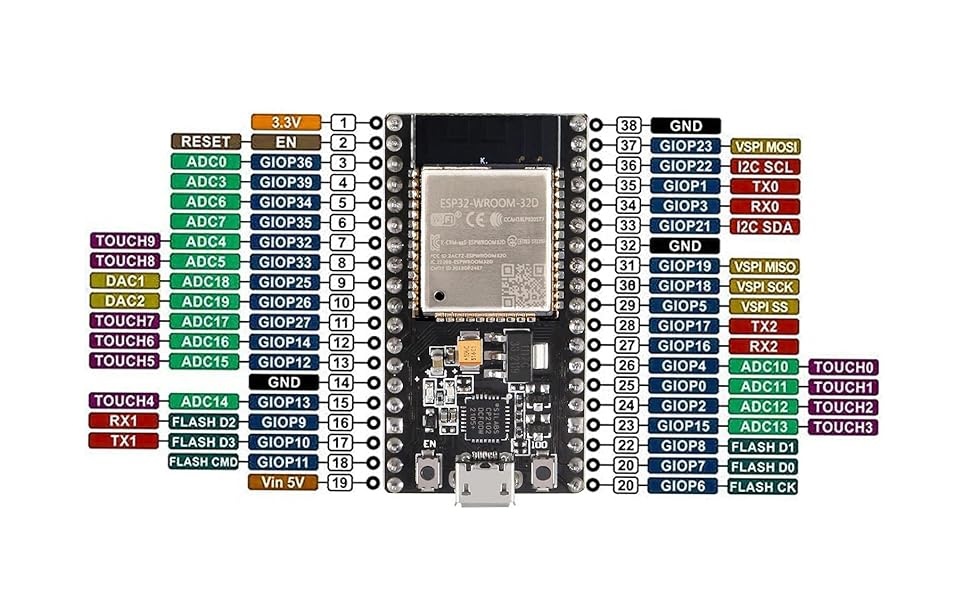
- Choose pins that are typically safe to use by referencing this tutorial
- Input/output pins: 4, 5, 13, 14, 18, 19, 21, 22, 23, 25, 26, 27, 32, 33
- Digital to analog pins: 25 and 26
- Input only pins: 34-39 (DHT11 issue)
- I2C SDA/SCL: Pin 21 and 22
- If using WiFi, don’t use 12-15, 25-27
Buying the "Right" ESP32
- MicroBlocks only works with the ESP32, ESP32-S3, and ESP32-C3 (there are many more versions that don't work with MicroBlocks)
- It's best to stick to the original/38 pin/25mm ESP32 model (the wider/30 pin/28mm ESP32 doesn't fit on a breadboard)
- When using an ESP32 with a breadboard, print this pinout chart (3" high) and use it as a template because the narrow version doesn't have pin numbers on top**
If you're not using MicroBlocks, there are more ESP32's and a whole YouTube video on the various types!